

keep it
How to Save a WhatsApp Chat (and What Each Method Keeps)
To save a WhatsApp chat, there are four real options: a backup, exporting the chat, turning it into a PDF and having it on paper. They don’t keep the same things or do the same job: a backup only opens inside WhatsApp, while an exported chat is a file of your own that you can keep wherever you like.
Here’s how to do each one on Android and iPhone, where the file ends up and what happens if the other person deletes the chat.
How to save a WhatsApp chat with a backup
A backup saves all your chats, with their photos and voice notes, in the cloud: on Google Drive if you have Android and on iCloud if you have an iPhone. It’s what lets you get WhatsApp back on a new phone, or if you lose yours.
- On Android: tap ⋮ › Settings › Chats › Chat backup. You’ll see when the last backup was made, and you can make a new one there and then.
- On iPhone: go to WhatsApp Settings › Chats › Chat Backup. The backup goes to your iCloud, so you need to be signed in and have free space.
What to know before you rely on it alone:
- It only opens inside WhatsApp. It isn’t a file you can read or print: it’s for putting your chats back into WhatsApp, with the same phone number and the same Google account (on Android) or iCloud account (on iPhone).
- It takes up cloud storage. On Android it counts towards your Google Account storage, and Google warns that backups that haven’t been updated in 5 months may be deleted automatically.
- You can encrypt it. With an end-to-end encrypted backup, neither WhatsApp nor Google nor Apple can read it. But to restore it you’ll need your password, your 64-digit key or your passkey.
Exporting the chat: a copy that’s all yours
Exporting creates a file with every message in a chat, with its date and time, that opens on any phone or computer. If you want to save a WhatsApp chat in particular and keep it outside the app, this is the way.
- On Android: open the chat, tap ⋮ › More › Export chat and choose Without media (just the text) or Include media (the text plus the chat’s most recent media).
- On iPhone: open the chat, tap the contact or group name, scroll down to Export chat and choose Without media or With all media (on older versions, “Attach media”).
- Then the share sheet opens and you decide where it’s saved.
Our step-by-step guides show you how to export a WhatsApp chat on Android and on iPhone. Bear in mind that an exported chat can’t be put back into WhatsApp, that view-once messages aren’t exported and that, if Advanced Chat Privacy is turned on in that chat, the export option doesn’t appear.
Where does an exported WhatsApp chat go?
Nowhere on its own: WhatsApp doesn’t keep a copy. It goes wherever you send it from the share sheet; if you can’t find it, think back to what you chose.
- On Android, Google Drive is the easiest. You can also email it to yourself with Gmail (if it’s large, it may not let you) or save it to a folder on your phone.
- On iPhone, choose Save to Files, then “On My iPhone” or iCloud Drive. If you AirDrop it to a Mac, it lands in the Downloads folder.
- What you’ll find: on iPhone, a .zip with a _chat.txt file inside, plus the photos, voice notes and videos if you included them. On Android, a .txt file with the media separately or, depending on where you send it, everything together in a .zip.
How to save a WhatsApp chat as a PDF
WhatsApp has no “save as PDF” option, but you can make one from the exported chat:
- Free, on a computer: export the chat without media, open the .txt in Word or Google Docs and save it as a PDF (in Google Docs, from File › Download). You only get the text: no photos and no voice notes.
- From your phone: it can be done too, with the print option. Our guide shows you how to turn a WhatsApp chat into a PDF.
- Laid out, with photos: our PDF book costs €12.99 and includes the conversation with its photos, plus the voice notes and videos as QR codes.
Starring and archiving don’t save the chat
Both are really useful, but neither makes a copy: everything stays inside WhatsApp, on your phone.
- Starring a message (press and hold it, then tap the star) lets you find it again in seconds, under “Starred messages”. It’s handy for an address or a lovely line.
- Archiving a chat just hides it from the list: it doesn’t delete it or save it anywhere else. You’ll find it at the top, under “Archived”, exactly as it was.
How to keep the photos, voice notes and videos
Photos and videos on Android
WhatsApp saves them to your phone’s gallery, unless you’ve turned that off in its settings.
Photos and videos on iPhone
Open them in the chat and save them to Photos with the share button. Once they’re in Photos, they no longer depend on the chat.
Voice notes
The easiest way to keep them is to export the chat with media: the voice notes come with the text. On Android, the most recent media is attached, not necessarily all of it.
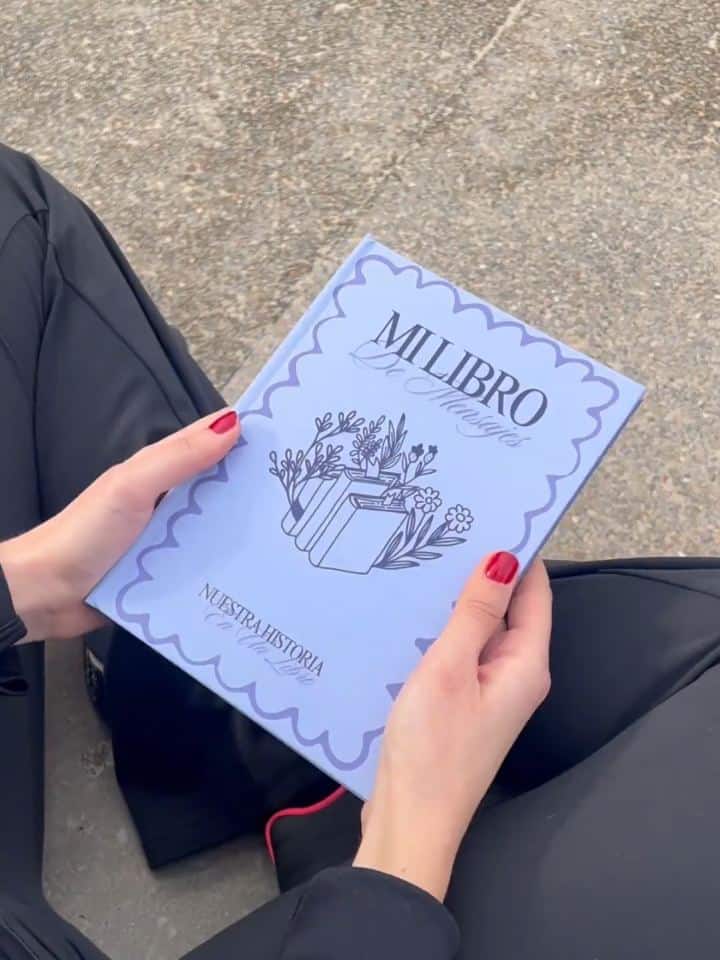
Print it or turn it into a book
Paper is the way to save a WhatsApp chat that doesn’t depend on any screen or account. If it’s a short chat, you can print it at home: here’s how to print a WhatsApp conversation and, if it’s a document or a photo someone sent you, how to print from WhatsApp.
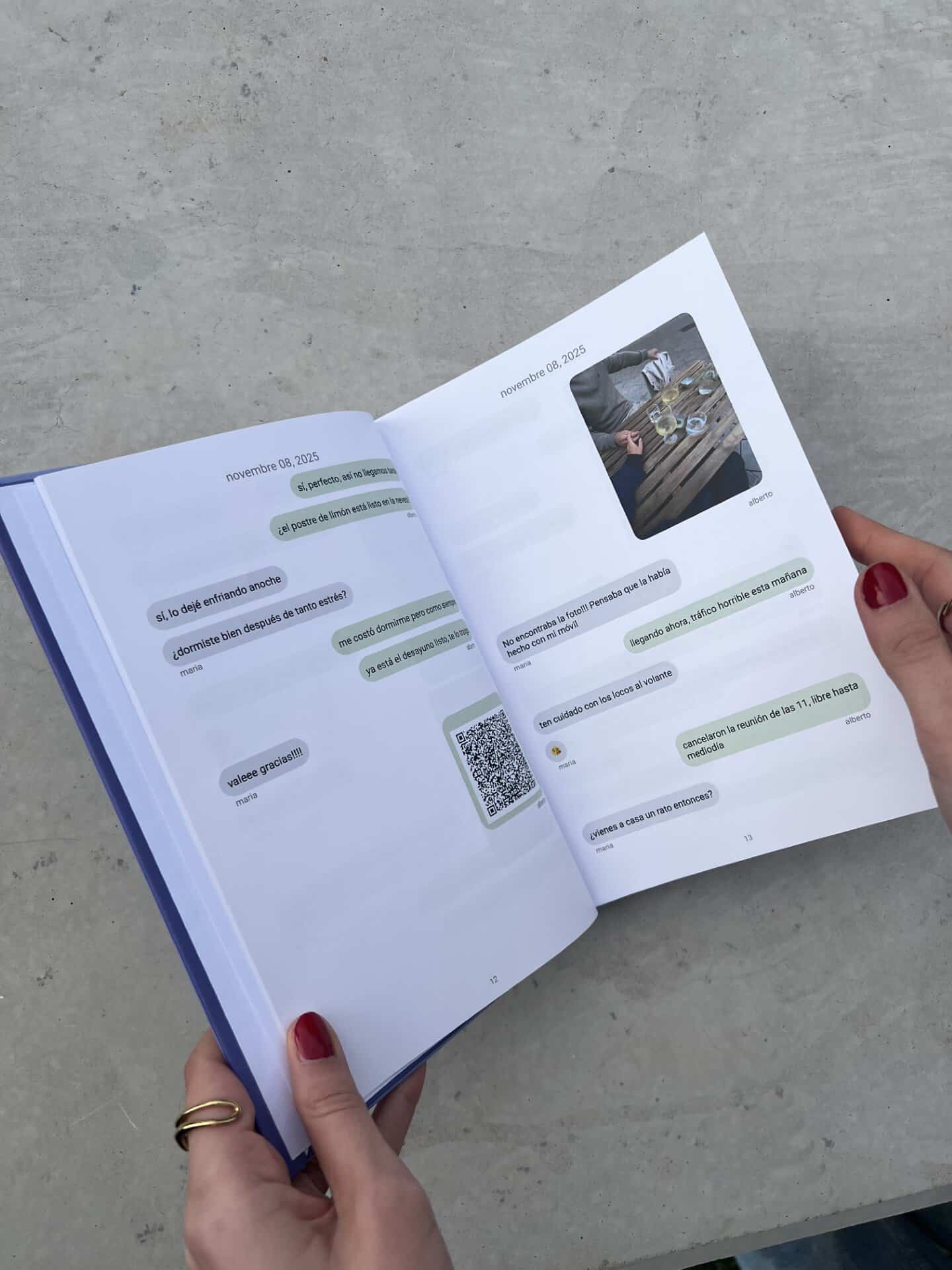
the one nobody deletes
4. Save a WhatsApp chat in a book
For the chats that matter (the one from when you got together, the group chat that’s always there or the one with someone who’s no longer here), a printed book is the copy nobody deletes by accident. You upload the exported chat and get the conversation laid out, with the photos in place and the voice notes and videos as QR codes.
You see every page before you pay, and you can personalize the cover and the dedication. This is how My Message Book works.
Before you change phones
- Make a backup just before and check the date of the last one in Settings › Chats › Chat backup.
- Use the same phone number and the same Google or iCloud account on the new phone. When you install WhatsApp, it will offer to Restore (on iPhone, Restore Chat History).
- If you’re switching from Android to iPhone or the other way round, you can move your full chat history from one phone to the other while setting up the new one, voice notes, photos and videos included.
- If your backup is encrypted, keep your password or 64-digit key to hand: without it you won’t be able to restore it.
- Export the chats that matter most. It’s an extra copy of your own that doesn’t depend on the restore going well.
If the other person deletes the chat, do you lose it?
No. If the other person deletes or clears the chat on their phone, yours stays as it is. What they can change in your chat from their side is this:
- Deleting a message for everyone. They can only do it with messages they sent themselves, and only for a limited time after sending them.
- Turning on disappearing messages. In a one-to-one chat, either of you can turn them on. From then on, new messages disappear after 24 hours, 7 days or 90 days; the ones you already had aren’t deleted. You can keep a specific message, unless the person who sent it blocks that.
- Turning on Advanced Chat Privacy. While it’s on, you won’t be able to export that conversation.
Which way to save a WhatsApp chat: a summary
| Method | What it keeps | Where it’s stored | Best for |
|---|---|---|---|
| Backup | All your chats, with photos and voice notes | Google Drive (Android) or iCloud (iPhone) | Changing phones or getting WhatsApp back |
| Exporting the chat | One chat: the text with dates and times, plus media if you include it | Wherever you send it: Drive, email, Files… | Having your own copy of a chat |
| The text; with our PDF book, the photos too | On your phone, computer or cloud | Reading, sending or printing it | |
| Starring | Nothing new: it marks messages | Inside WhatsApp | Finding a message quickly |
| Archiving | Nothing new: it hides the chat | Inside WhatsApp | Tidying your chat list |
| Printed book | The conversation with its photos, plus voice notes and videos as QR codes | On your bookshelf | Keeping it for ever or giving it as a gift |
Keep reading
- How to recover a WhatsApp chat
- How to keep the messages of a loved one
- How to download Instagram messages
- How to print a WhatsApp conversation
- How to count the messages in a WhatsApp chat
Frequently asked questions
What’s the best way to save a WhatsApp chat?
It depends on what you want it for. To avoid losing WhatsApp when you change phones, a backup. To have a specific chat outside WhatsApp, export it. And to really keep it, as a PDF or in a book.
If I export a WhatsApp chat, where does it go?
Wherever you choose in the share sheet: Google Drive, your email, the Files app on iPhone or a folder on your phone. WhatsApp doesn’t keep a copy of the file.
Can I save a WhatsApp chat with the photos and voice notes?
Yes. When you export it, choose the option with media and the photos, voice notes and videos come with the text (on Android, the most recent ones). In a book, the photos are printed and the voice notes and videos become QR codes.
How do I save a WhatsApp chat as a PDF?
Export the chat without media, open the .txt in Word or Google Docs on your computer and save it as a PDF. If you want it laid out and with the photos, the PDF book costs €12.99.
If the other person deletes the chat, do I lose it?
No. If they delete or clear it on their phone, yours stays as it is. What they can do is delete for everyone the messages they sent, for a limited time, or turn on disappearing messages for new messages.
Some conversations deserve more than a backup.