

How to export a WhatsApp chat on Android (2026 guide)
To export a WhatsApp chat on Android, open the conversation, tap the three dots at the top right and go to “More” › “Export chat”. Then choose “Without media” or “Include media” and where to send it: Google Drive, Gmail, Quick Share or a folder on your phone. Below you’ll find every step, which option to pick, what to do if it fails and how to get it ready for printing or turning into a book.
How to export a WhatsApp chat on Android, step by step
The menu belongs to WhatsApp, so it’s the same on a Samsung, a Pixel, a Xiaomi or a Motorola. It works for one-to-one chats and for groups.
Open the chat
Open WhatsApp and go into the conversation or group you want to keep.
Tap the three dots ⋮
They’re at the top right, inside the chat (not on the chat list). The chat menu opens.
More › Export chat
Tap “More”, at the bottom of the menu, then “Export chat”.
Without media or include media
WhatsApp asks whether you want the chat’s files. On Android there are just two options:
Choose where it goes
The Android share sheet opens. WhatsApp’s help mentions Quick Share, Gmail and Chat; Google Drive usually shows up too. More on this below.
Done
You’ll get a text file with every message, its date and time and, if you included media, the photos, videos and voice notes as attachments. Depending on where you send it, it all arrives together in a .zip.
What WhatsApp’s official help says: if you choose “Include media”, the most recent media is added as attachments, not necessarily all of it. And the exported chat can’t be imported back into WhatsApp, because it’s a text file and not a backup. It’s all in the official WhatsApp guide to exporting chats on Android.
On a computer, only WhatsApp Web, and only the text. According to WhatsApp’s help, WhatsApp Web can now export a chat (all messages or a custom date range), but without photos, videos or voice notes and without disappearing messages. The Windows app doesn’t offer it. If you want the photos, export from your phone.
“Without media” or “Include media” on Android
Android has a catch that hardly any tutorial mentions: “Include media” adds the chat’s most recent files, so in conversations that go back years the older photos can be left out. This table helps you choose (size depends on each chat, so no made-up numbers):
| Option | What it includes | Size | What it’s for |
|---|---|---|---|
| Without media | The text: messages, names, dates and times. Photos and voice notes show up as omitted. | The lightest | Keeping the words, searching for a line, reading it on a computer or turning it into a PDF. |
| Include media | The text plus the chat’s most recent photos, videos and voice notes as attachments. | Heavy if there are videos | Making a book with photos and voice notes, or keeping a copy of the chat with the latest things you sent each other. |
| Google Drive backup (not an export) | All your chats, in a format only WhatsApp can open. | Depends on your history | Getting WhatsApp back on a new phone. You can’t read or print it. |
| The phone’s Media folder (not an export) | The WhatsApp photos, videos and audio still stored on the phone. | Whatever your WhatsApp takes up | Rescuing older photos by hand that the export didn’t include. |
If the chat is going to end up on paper, choose “Include media”: that way the photos get printed and the voice notes can become QR codes.
Where the exported chat is saved on Android
Nowhere by default: it goes wherever you send it from the share sheet. These are the options that work best on Android:
Google Drive
Choose Drive, pick a folder (“My Drive” if you don’t change anything) and tap Save. On your computer, go to drive.google.com and download it. Ideal for chats with lots of photos.
Gmail, to yourself
Type your own address and send it. If the file is large, Gmail may turn it into a Drive link or refuse to send it; if so, save it straight to Drive.
Quick Share
Sends it to a nearby Android or to a Windows computer with Quick Share installed.
A folder on your phone
If you have Files by Google or another file manager, it may appear as a destination so you can save it, for example, to Downloads. Then copy it to your computer with a USB cable.
WhatsApp, to your own chat
Find yourself in the list (you appear as “You”) and send it. Then download it on your computer from WhatsApp Web. Fine for files that aren’t too big.
If the chat is very long or the export fails
It tends to happen with very busy groups and chats that go back years. WhatsApp’s help doesn’t currently publish a message limit, so we won’t give you a number we can’t check. What does work on Android:
- Try “Without media” first. Text is light and almost always goes through first time.
- If Gmail gives an error, use Google Drive. Email has a size limit; Drive doesn’t depend on it.
- Free up space on your phone (Settings › Storage): WhatsApp prepares the file before sharing it.
- Update WhatsApp from Google Play and don’t leave the app until the share sheet appears.
- Older photos missing? That’s down to the official note on “Include media”. Look for them with your Files app in Android › media › com.whatsapp › WhatsApp › Media, if they’re still on the phone.
- No “Export chat” option? Someone may have turned on “Advanced Chat Privacy”, which, according to the official WhatsApp blog, stops that chat from being exported. Tap the chat name to check.
How to export the chat to print it or make a book
Three routes, from the most homemade to the nicest:
Print the .txt
Open the text file on your computer and print it. You’ll get hundreds of pages with no photos and the date and time on every line.
Turn it into a PDF
Easier to keep and to send. We explain how in how to turn a WhatsApp chat into a PDF.
Turn it into a book
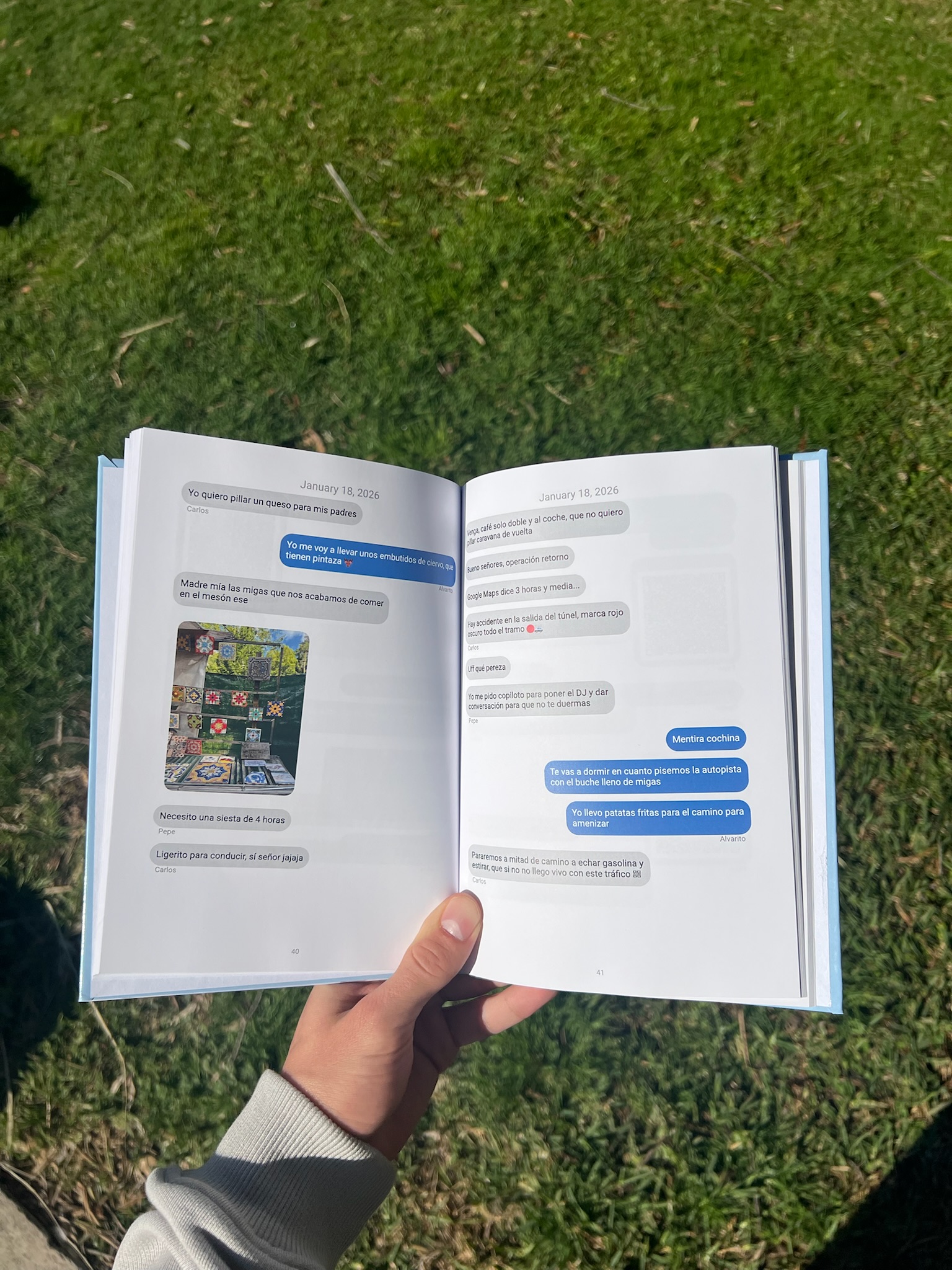
Export with “Include media”, save it to Drive or your phone and upload it to Mi Libro de Mensajes from your phone’s or computer’s browser. The conversation lays itself out: bubbles like on your phone, printed photos, chapters and voice notes turned into QR codes.
Before you upload it, three checks
That the file has photos (if not, export again with “Include media”), that the chat starts on the date you want, and how long it is: here’s how to count the messages in a WhatsApp chat. For the whole process, read how to print a WhatsApp conversation.
FAQs about exporting chats on Android
Where is the exported chat saved on Android?
Wherever you choose when exporting it: Google Drive, your email, another device via Quick Share or a folder on your phone such as Downloads. WhatsApp doesn’t keep a copy by itself.
Can I export a chat and import it on another phone?
Export, yes; import, no. According to WhatsApp’s official help, an exported file can’t be imported back because it’s a text file, not a backup. To move your chats to a new Android, use the Google Drive backup.
What’s the difference from a backup?
The backup (WhatsApp › Settings › Chats › Chat backup) keeps all your chats so you can restore them, but you can’t open it. Exporting creates a file of one specific chat that you can read, print or turn into a book.
How do I export a whole chat without screenshots?
With “Export chat”: it saves the whole conversation into a file in one go. If you want it to look like it does on your phone, with bubbles, turn it into a PDF or a book.
Why aren’t all the photos included?
Because on Android “Include media” adds the chat’s most recent files. Older photos that are still on the phone are in WhatsApp’s Media folder.
Can you export a WhatsApp chat from a computer?
Yes, but only the text. WhatsApp Web can export all messages or a custom date range, without media or disappearing messages; the Windows app doesn’t have the option. If you want the photos and voice notes, export from your phone and move the file to your computer.