

to paper
How to Print from WhatsApp: Documents, PDFs, Photos and Texts
To print from WhatsApp, you don’t need to move anything to your computer. On an iPhone, open the file in the chat, tap Share and choose Print. On Android, open it and look for Print in the ⋮ menu of the app it opens in, or under Share. On a computer, open it from WhatsApp Web and press Ctrl + P (Cmd + P on a Mac).
Below are the steps for each case: a document or PDF, a photo, a message and from your computer. Plus what to do if your printer doesn’t show up.
How to print a document or PDF from WhatsApp
This works for any file someone sends you in a chat: a PDF, an invoice, a ticket, a receipt or a Word document.
- On iPhone: tap the document in the chat to open it. Tap Share, scroll down and choose Print. Select your printer, the number of copies and the pages, then tap Print.
- On Android: tap the document and it opens in your PDF or document viewer, such as Google Drive. Look for Print in its ⋮ menu or under Share, choose the printer and confirm.
How to print a photo from WhatsApp
- On iPhone: open the photo in the chat, tap the share icon and choose Print. If it isn’t there, save it to Photos and from there tap Share › Print.
- On Android: open the photo in your Gallery or Google Photos (WhatsApp saves the photos you receive there unless you’ve turned it off in its settings) and look for Print in the ⋮ menu or under Share.
How to print a WhatsApp message or text
WhatsApp doesn’t have a button to print messages, but there are two quick ways.
- Copy and paste. Press and hold the message, tap Copy and paste it into a note, a document or an email. Then use that app’s Print option.
- Take a screenshot. If you want it to look like the chat, with the time and the bubbles, take a screenshot and print it like a photo.
- If it’s lots of messages, it isn’t worth it: export the chat and follow our guide to print a WhatsApp conversation.
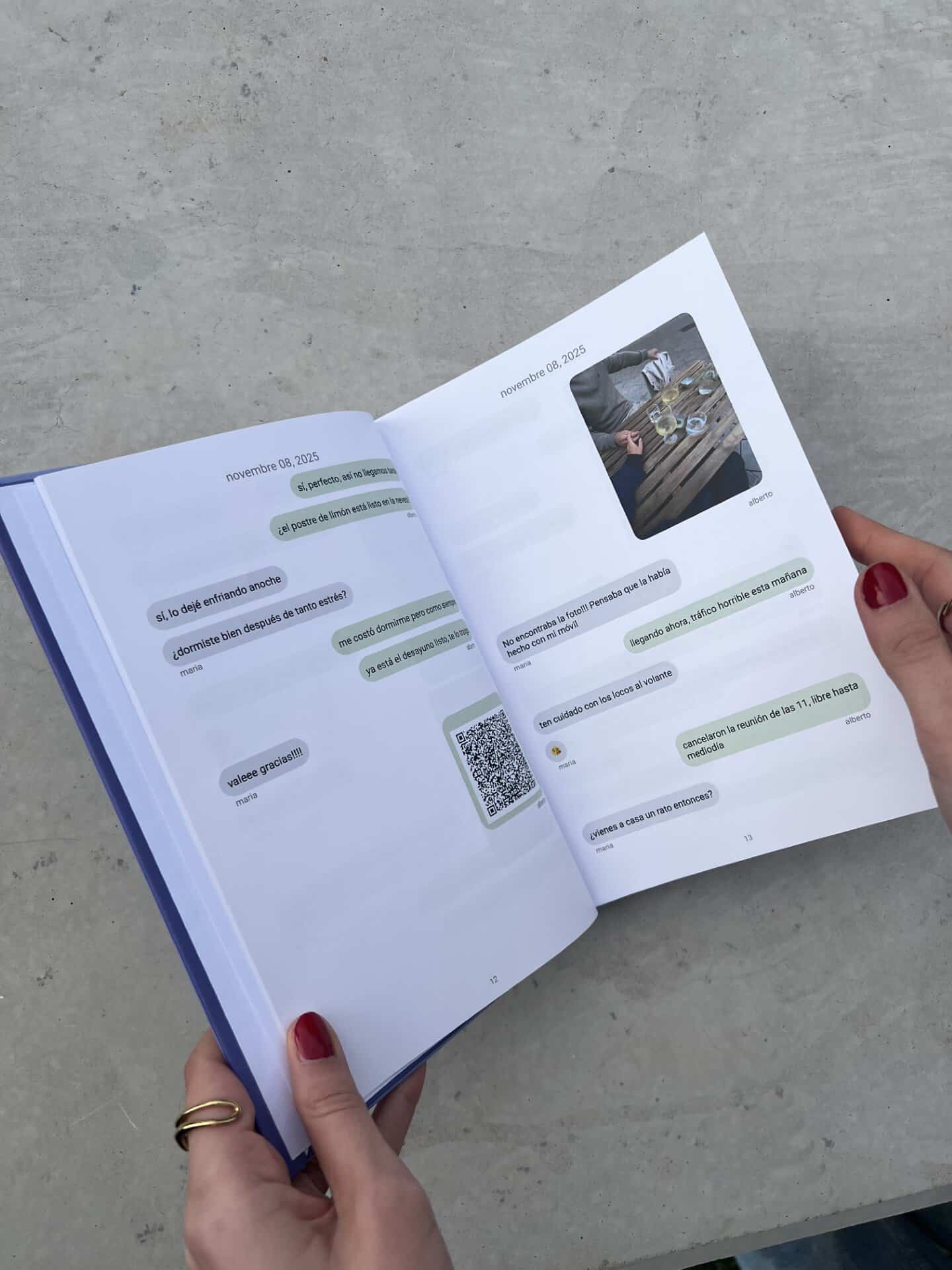
if it’s the whole chat
1. What if you want to print the whole conversation?
For a long chat, screenshots aren’t worth it and the exported text comes without photos. With a message book you get the conversation printed and laid out, with the photos in place and the voice notes and videos as QR codes.
You just export the chat (here’s how on iPhone and Android) and upload it. And if you need it today, the PDF version arrives straight away.
How to print from WhatsApp Web or your computer
It’s the easiest way if the file is long or you only want a few pages.
- A document or PDF: in WhatsApp Web or the desktop app, click the document to open or download it and, with the file open, press Ctrl + P on Windows or Cmd + P on a Mac.
- A photo: open it in the chat, click the download icon and, once it’s on your computer, open it and press Ctrl + P (Cmd + P on a Mac).
- A message: select it with your mouse, copy it with Ctrl + C, paste it into Word or a text document and print it.
In the print dialog you choose the printer, the number of copies, the pages and whether you want it double-sided.
If your printer doesn’t show up on your phone
- On iPhone, the printer needs to support AirPrint and be on the same Wi-Fi network as your phone.
- On Android, most phones already come with a print service (Mopria or the Default Print Service). Your phone and printer need to be on the same Wi-Fi: it won’t work over mobile data or on public Wi-Fi.
- If your printer has its own app, install your brand’s app and share the file with it.
- If you don’t have a printer, forward the file to your email and take it to a print shop on a USB stick, or ask if they can receive it by email.
Tips to avoid wasting paper
Check the preview
Before you hit print, see how many pages it will be. A PDF from WhatsApp can be longer than you think.
Print only what you need
In the print dialog you can choose specific pages instead of the whole document.
Go double-sided
If your printer allows it, turn it on in the options. You’ll use half the sheets.
Mind your personal data
If you send a document to a print shop, ask them to delete it afterwards, and delete it from the chat if you no longer need it.
Summary: how to print from WhatsApp in each case
| What you want to print | iPhone | Android | Computer |
|---|---|---|---|
| A document or PDF | Share › Print | Open in the viewer › ⋮ › Print | Open it › Ctrl + P |
| A photo | Share › Print, or from Photos | Gallery or Google Photos › ⋮ › Print | Download › Ctrl + P |
| A message | Copy › Notes › Print | Copy › note or email › Print | Copy › Word › Ctrl + P |
For a whole conversation, see how to print a WhatsApp chat or how to turn it into a PDF.
Keep reading
- How to print a WhatsApp conversation
- How to save a WhatsApp chat as a PDF
- How to export a WhatsApp chat on iPhone
- How to export a WhatsApp chat on Android
- How to count the messages in a WhatsApp chat
Frequently asked questions
Can you print directly from WhatsApp?
WhatsApp doesn’t have its own print button, but it only takes a few steps: on iPhone, from Share › Print; on Android, by opening the file in a viewer with a Print option; and on a computer, by opening it and pressing Ctrl + P.
How do I print a PDF someone sent me on WhatsApp?
Open it in the chat. On iPhone, tap Share › Print; on Android, look for Print in the ⋮ menu of your PDF viewer. On a computer, open it in WhatsApp Web and press Ctrl + P or Cmd + P.
How do I print from WhatsApp on a computer?
Open WhatsApp Web or the desktop app, open or download the document or photo and press Ctrl + P on Windows or Cmd + P on a Mac. Then choose your printer.
Why doesn’t my printer show up on my phone?
It’s almost always the network: your phone and printer must be on the same Wi-Fi. On iPhone, the printer must also support AirPrint; on Android, you need a print service such as Mopria or your printer’s app.
How do I print a WhatsApp message?
Press and hold the message, tap Copy and paste it into a note or document to print it. If you want it to look like the chat, take a screenshot and print it like a photo.
Can I print a whole WhatsApp conversation?
Yes. Export the chat and open it on your computer to print it, or turn it into a book with the photos and voice notes as QR codes. Our guide shows you how to print a WhatsApp conversation.
Paperwork gets printed and filed. The conversations that matter deserve a book.